
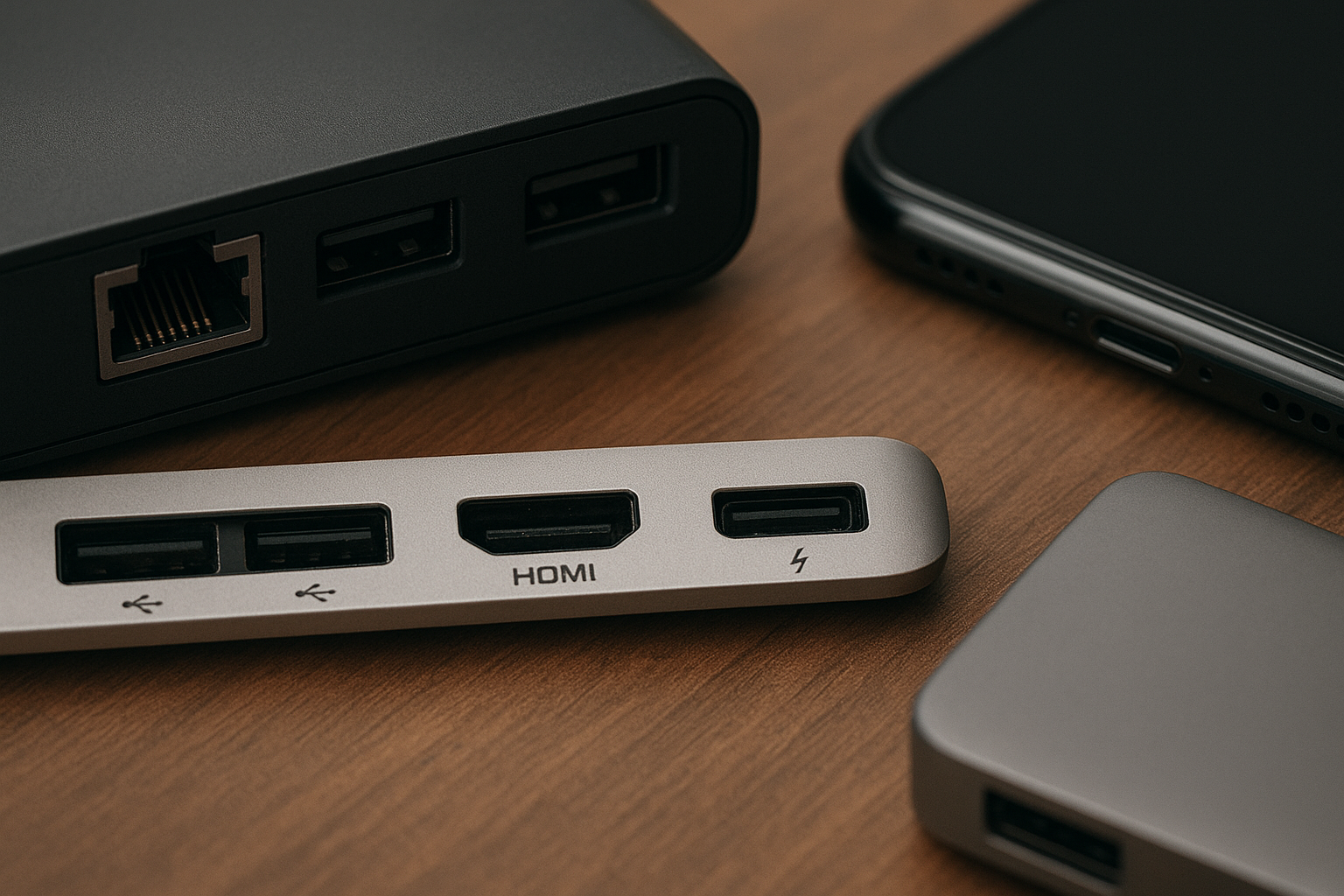

A data port is a physical or virtual interface used to send or receive digital information between devices. Whether connecting your laptop to a monitor, charging a smartphone, or transferring files, data ports make everyday tech work together. Understanding their types and uses is key to efficient, hassle-free communication between your favorite gadgets.
Important Information Table
| Aspect | Details |
|---|---|
| Definition | An interface for transferring data between electronic devices |
| Categories | Physical (hardware), Virtual (software/network) |
| Examples | USB, HDMI, Ethernet, Serial, Thunderbolt |
| Typical Uses | Connecting peripherals, data transfer, network communication |
| Core Protocols | USB, Ethernet, HDMI, Serial, Bluetooth (virtual) |
What is a Data Port?
A data port is a connector or interface that allows digital information to move between devices. This term covers both visible ports like USB sockets on your computer and virtual channels inside networks, such as software-based TCP/IP ports. Whether transferring files, sharing internet connectivity, or linking up with displays, data ports play a crucial role in device functionality.
The main difference that stands out between data ports and power ports is their role. Data ports focus on information exchange. Power ports, by contrast, are designed solely for charging or supplying energy, not communication. When you use a data port, you’re enabling devices to talk—sending text, images, signals, or even commands.
Most modern electronics include multiple data ports to ensure compatibility and expand their capabilities. For example, a laptop might offer both USB and HDMI ports, letting you plug in many device types at once.
Why Are Data Ports Important?
Data ports direct the flow of information in the digital world. Without them, devices couldn’t communicate, share resources, or integrate workflows. Picture working from home without USB to connect your mouse and keyboard, or HDMI to use a larger display. Everyday tech tasks simply wouldn’t happen smoothly.
As the number of connected devices grows, so does our need for flexible, fast, and reliable data ports. New standards emerge, promising quicker data transfers and backward compatibility, keeping your older devices useful even as technology advances.
This need for seamless communication often leads to compatibility issues and questions for users. How do you choose the correct data port? What happens when a device lacks the slot you need? These are real challenges in the evolving world of digital connectivity.
Types of Data Ports
There are two main categories of data ports: physical and virtual. Both serve a similar purpose but cater to different needs and environments.
Physical Data Ports
- USB (Universal Serial Bus): The most common for connecting storage, peripherals, and charging.
- HDMI (High-Definition Multimedia Interface): Used for transmitting audio and video, especially for monitors and TVs.
- Ethernet: Key for wired network connections, providing speed and reliability.
- Serial/RS-232: An older standard, still in use for industrial and legacy equipment.
- Thunderbolt: Offers extremely fast data and video transfer, popular among creatives and power users.
At a quick glance, USB and HDMI look very similar—rectangular ports at the edge of your device. However, their function is quite distinct: one excels in general data and power, the other in high-fidelity media.
Virtual Data Ports
- Network (TCP/UDP) Ports: These operate inside your device’s software, managing how information flows over Wi-Fi and the internet.
- Bluetooth Channels: While physical in terms of wireless transceivers, the actual data pathways are virtual.
Virtual ports are not visible but are critical for apps, online games, file sharing, and secure connections. Their configuration makes or breaks online experiences and device interoperability.
Key Features of Data Ports
Not all data ports are equal. A quick comparison shows how features can dramatically influence speed, compatibility, and performance.
- Speed: Varies by standard (USB 2.0 vs USB 3.2, Thunderbolt 3 vs 4).
- Shape and Size: Ranges from large (Ethernet) to ultra-compact (USB-C, microUSB).
- Compatibility: Some ports are backward-compatible; others require adapters or converters.
- Power Delivery: Many data ports now double as power sources, especially with USB-C and Thunderbolt.
- Durability: Ports wear over time—rugged connectors are essential for heavy use.
Choosing the right data port depends on your device’s age, supported standards, and what peripherals or cables you already own. Adapters and docks help bridge many gaps, but some functions (like high-speed video) require direct support.
Common Uses and Examples
Everyday Scenarios
- Transferring Files: Moving data from a camera to a laptop via USB or SD port.
- Connecting Displays: Plugging in an external monitor using HDMI or DisplayPort.
- Networking: Wired connections through Ethernet boost reliability for streaming or gaming.
- Charging Devices: Newer standards let one port handle data and power, such as USB-C on smartphones and laptops.
- Peripheral Setup: Attaching a mouse, keyboard, or external hard drive for more productivity.
Specialized Applications
- Industrial Automation: Advanced HMI interfaces and serial ports remain vital for factory equipment and control systems.
- Healthcare: Medical devices often leverage USB, proprietary, or legacy serial ports for diagnostics and monitoring.
- Media Production: Thunderbolt and SD card slots support massive file transfers and high-definition editing workflows.
Every field—whether consumer, commercial, or industrial—relies on a mix of data ports to support daily operations and specialized functions.
Troubleshooting and Best Practices
Problems with data ports can cause frustration: devices don’t connect, files fail to transfer, or you get unexpected errors. Most issues come down to a few key areas: compatibility, driver support, or cable quality.
- Check both the port and the cable for debris or wear—sometimes cleaning or replacing the cable is all it takes.
- Make sure your device drivers are updated to support the latest data port standards.
- For network ports, confirm your firewall or router isn’t blocking needed connections or virtual ports.
- Use recommended power adapters to avoid damaging combination data/power ports.
Knowing the specifics of your device’s ports can help solve most connection headaches quickly and efficiently. If confusion arises over port type (USB-A vs USB-C, HDMI vs DisplayPort), check your device manual or manufacturer’s website for diagrams and specs.
The Future of Data Ports
The world of data ports is always evolving. USB-C and Thunderbolt are leading the push for universal connections—single ports that handle data, video, power, and even networking. Meanwhile, wireless standards are making virtual ports more important than ever.
Yet, some devices still depend on older connectors, so adapters and multi-port hubs are here to stay for now. You will see even faster, more compact, and multi-functional ports integrated into future devices, making your digital life simpler and more connected.
FAQ: Data Port
What is the difference between a data port and a power port?
Data ports transfer digital information, while power ports supply energy. Some modern ports, such as USB-C, handle both types of functions.
Are all USB ports the same?
No. USB comes in many forms: USB-A, USB-B, USB-C, and supports varied speeds (2.0, 3.0, 3.2). Always match your device to the port and cable for best results.
What issues can occur with data ports?
Most issues involve compatibility, outdated drivers, or physical wear. Adapters may help bridge certain gaps, but double-check device specs before use.
How do virtual data ports work?
Virtual ports are configured in software to manage communication channels within a network—key for internet applications or wireless links.
Is wireless going to replace all physical ports?
Not yet. Wireless simplifies many connections, but high-speed or secure applications still rely on physical data ports for now.