
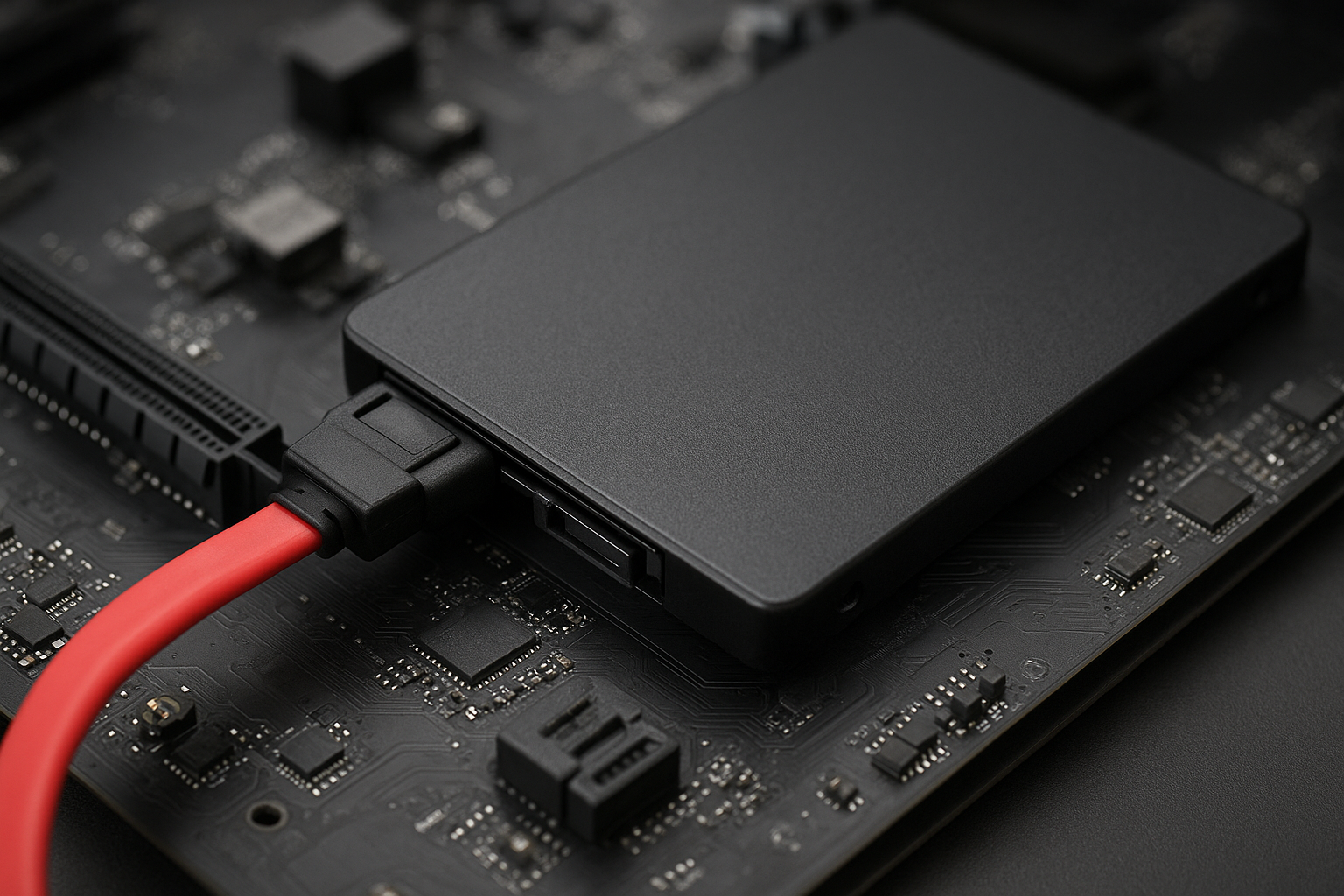

SATA (Serial ATA) is a widely used interface for connecting storage devices to computers. It offers reliability, evolving speed standards, and compatibility across hard drives and SSDs. Understanding SATA helps you choose the right storage solution for your PC build, ensuring optimal performance and future-ready upgrades.
| Important Information About SATA | |
|---|---|
| Full Name | Serial Advanced Technology Attachment |
| Primary Purpose | Connecting storage devices to computers |
| First Introduced | 2003 |
| Main Versions | SATA I, SATA II, SATA III |
| Typical Devices | HDDs, SSDs, Optical Drives |
| Maximum Bandwidth | 6 Gbps (SATA III) |
What is SATA?
SATA stands for Serial Advanced Technology Attachment. It is a crucial interface standard designed for connecting hard drives, SSDs, and optical drives to a computer’s motherboard. This interface replaced older technologies like the Parallel ATA (PATA), bringing benefits in speed, cable management, and efficiency. At a quick glance, you can spot a SATA connection by its thin, flexible cables—far less cumbersome than PATA’s ribbon alternatives.
One of the main differences that stands out is how SATA enables faster data transfer rates while simplifying the internal layout of PCs. SATA also introduced hot swapping, meaning drives can be replaced or added while the system is running—a significant leap for convenience.
Technical Specifications of SATA
The technical foundation of SATA centers on its architecture. SATA uses serial signaling technology for transferring data bits one after another along a single channel. This brings lower latency and higher speeds compared to older parallel connections.
Typically, each SATA device connects directly to the motherboard with its own dedicated cable. This clear setup results in better airflow, reduces electromagnetic interference, and makes troubleshooting significantly easier. SATA cables are also keyed, preventing incorrect connections.
- Connector types: Standard SATA, eSATA (for external devices), and SATA power cables
- Maximum cable length: 1 meter for internal SATA, 2 meters for eSATA
- Supported devices: HDDs, SSDs, CD/DVD/Blu-Ray drives
- Hot swapping: Supported by most modern systems
SATA Versions and Performance
SATA has evolved through several major versions, each enhancing bandwidth and capabilities. A quick glance shows how these versions impact the real-world speed of your storage devices. Picking the right SATA version ensures the best possible performance for your data tasks.
The three main versions are:
- SATA I (1.5 Gbps): Up to 150 MB/s – legacy systems, rarely seen in modern PCs.
- SATA II (3.0 Gbps): Up to 300 MB/s – suitable for mid-2000s systems, compatible with many drives today.
- SATA III (6.0 Gbps): Up to 600 MB/s – standard in modern builds, essential for getting the most from SSDs.
The main difference that stands out is the leap in speed with each release. Newer drives are often backward compatible: a SATA III SSD will work in a SATA II slot at the slower speed. For most users, SATA III provides optimal speed for everyday computing and gaming setups.
Use Cases and Compatibility
SATA’s versatility makes it central to PC building and upgrading. Whether you are assembling a brand-new gaming rig or reviving an older desktop with a speedy SSD, SATA is almost always involved. SATA drives are the default choice for budget and mainstream build configurations.
One common problem is choosing between a traditional hard drive (HDD) and a solid-state drive (SSD) for a storage upgrade. SSDs on SATA provide excellent read/write speeds and reliability, while HDDs offer larger capacities at lower prices. Most modern motherboards have several SATA ports, often supporting RAID setups for redundancy or speed.
- Entry-level desktops and laptops: Use SATA drives for easy upgrades and affordable storage.
- External enclosures: Leverage eSATA for fast data access outside the case.
- Workstations/server builds: Multiple SATA ports enable storage expansion and data protection setups.
SATA vs. Other Storage Interfaces
In the evolving world of storage, SATA often faces comparison with storage interfaces like NVMe and IDE. While NVMe (typically using PCIe) offers much higher speeds, SATA strikes a balance between affordability and performance.
For most non-professional applications, SATA’s 6 Gbps bandwidth is more than sufficient. However, if you regularly move large files or need ultra-fast boot times, NVMe SSDs deliver substantial advantages. IDE, on the other hand, is largely obsolete, only appearing in legacy systems.
- SATA vs. NVMe: NVMe is faster (up to 7000 MB/s), but SATA is more widely supported and budget-friendly.
- SATA vs. IDE: SATA is considerably faster and easier to cable; IDE is no longer relevant for new builds.
- SATA for Optical Drives: Remains the common choice for DVD, Blu-Ray, and legacy media.
Common SATA Questions Answered
With so many options and upgrades, it’s easy to be unsure about compatibility, speed, or what fits your build plan. A key concern is whether older SATA drives work in newer systems or if it’s worth switching from SATA to NVMe.
The good news is that SATA’s backwards compatibility means older drives and cables can often be used with newer motherboards, albeit at lower speeds. Cables are also inexpensive and standardized, helping make system upgrades smooth and affordable.
- Mixing Drives: You can combine SSDs and HDDs using SATA for the best of both speed and capacity.
- Adding More Devices: Most desktop motherboards feature 4–8 SATA ports for plenty of upgrade room.
- Transition to M.2/NVMe: SATA M.2 drives exist, but don’t confuse them with NVMe M.2 which are much faster.
FAQ: SATA
What is SATA mainly used for?
SATA mainly connects hard drives, SSDs, and optical drives to computers, providing a fast and standardized way to manage data storage.
Can I use a SATA III drive on a SATA II port?
Yes, SATA is backward compatible. The drive will operate at SATA II speeds, allowing flexibility for mixing newer drives with older systems.
Is SATA obsolete?
While NVMe SSDs are faster, SATA is still widely used and essential for many entry-level to midrange builds. Older systems and bulk storage heavily rely on SATA.
How do I know if my motherboard supports SATA?
Most motherboards feature dedicated SATA ports, often labeled on the board. Refer to your motherboard’s manual for exact locations and compatibility.
Why choose SATA over newer interfaces?
SATA offers a blend of wide compatibility, straightforward installation, and affordable drives, making it a go-to option for most users today.