

Important Information about Luma
| Software Category | Photo Editing, AI Visual Enhancement |
|---|---|
| Platforms | Windows, macOS, Web-based |
| Main Use | Image Retouching, AI Filters, Workflow Automation |
| Launching Year | 2022 |
| Target Users | Photographers, Creators, Businesses |
| Pricing Model | Free & Paid Plans |
| Official Website | luma.ai |
What is Luma?
Luma is a next-generation photo editing software that utilizes AI-driven tools to make image enhancement fast, easy, and visually stunning. Unlike traditional editors, Luma’s focus is on automation and smart assistance, empowering users to achieve professional results without lengthy manual adjustments.
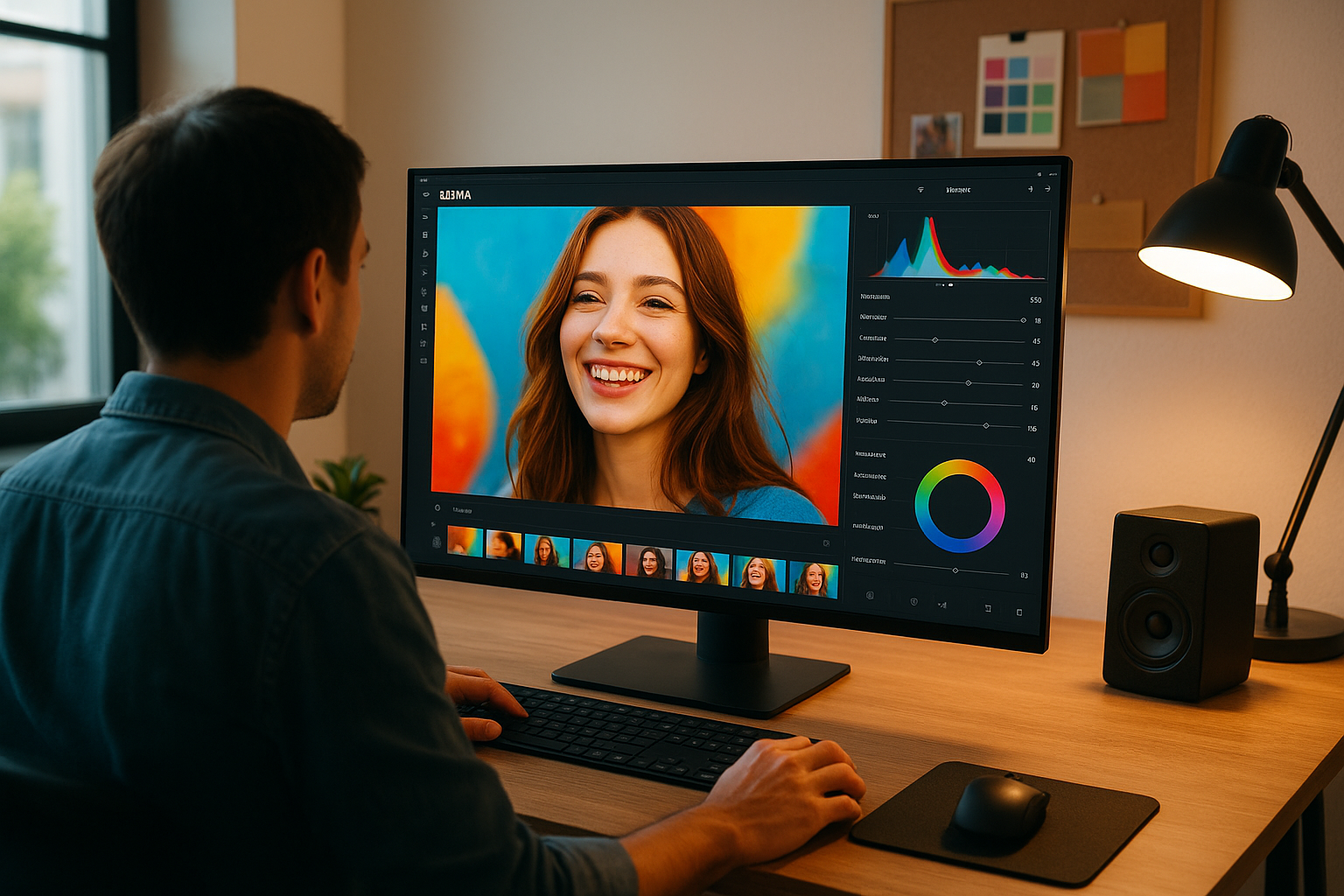
Developed for both casual and professional use, a quick glance at Luma’s interface reveals clean design, real-time previews, and intuitive sliders. Its cloud-based workflow lets you access your projects from anywhere, integrating with other platforms and devices.
The main difference that stands out is Luma’s commitment to minimizing manual edits. With AI-based suggestions, batch processing, and templates, users can produce high-quality photos faster than ever.
Luma’s Key Features
- AI Enhancement: One-click fixes for exposure, color, sharpness, and blemishes.
- Batch Processing: Edit hundreds of photos simultaneously using preset actions.
- Non-Destructive Editing: Easily revert changes at any stage, maintaining original files untouched.
- Smart Presets: Pre-built templates for fast, consistent results across multiple images.
- Cloud Sync: Seamlessly synchronize edits across devices.
- RAW Support: Handle professional camera formats with ease.
- Intuitive User Interface: Modern, minimal design for efficient workflows.
Each feature provides a distinct advantage over legacy editing tools. The smart presets, for example, offer a wider range of options than most direct competitors, while cloud-native functionality delivers a realistic workflow experience.
How Luma Improves Your Photo Editing Workflow
From Start to Finish
With Luma, you will enjoy a smoother, more productive editing process. Rapid AI analysis recommends optimal lighting and corrections as soon as you upload a photo. Instead of fumbling through menus, adjustments are just a click away.
The interface provides a clearer view of before/after changes so you can instantly evaluate your edits. Multi-step undo levels let you experiment creatively without fear, making the workflow agile and less stressful.
Collaboration and Sharing
Luma’s collaborative features mean you can invite colleagues or clients to review, comment, and even co-edit photos in real time. Version history makes tracking changes simple, which is especially useful in team environments or when iterating on multiple design options.
Export options let you optimize images for social media, web, or print with presets that match each platform’s requirements—saving you time and reducing export errors.
- Instant AI recommendations on upload
- Editable history and safe experimentation
- Team review, comments, and co-editing
- Preset exports for all major destinations
Luma vs Other Photo Editors
How Does Luma Compare?
Luma looks very similar to popular platforms like Adobe Lightroom and Skylum Luminar, but the main difference that stands out is its rapid AI automation and lighter learning curve. While legacy editors require more manual input, Luma’s one-click enhancements yield professional results in seconds.
A quick glance reveals Luma arranges its dashboard and controls in a way that minimizes visual clutter. Editing workflows are more guided, offering clear contextual tips so new users feel confident from the start.
Comparison Table
| Feature | Luma | Lightroom | Luminar |
|---|---|---|---|
| AI Auto-Adjust | Yes | Yes | Yes |
| Learning Curve | Easy | Intermediate | Easy |
| Collaboration | Yes | Partial | No |
| Batch Processing | Yes | Yes | Yes |
| Cloud Sync | Yes | Yes | No |
| Template Presets | Extensive | Good | Good |
| Platform Support | Web, Win, MacOS | Win, MacOS | Win, MacOS |
| Free Plan | Yes | No | No |
Luma offers a wider range of real-time automation and teamwork features than most competitors, positioning it as a top choice for modern photo workflows. For a broader look at other options, check out our best photo editing softwares guide.
Most Popular Use Cases
- Professional Portrait Retouching: Delivers fast skin smoothing, blemish removal, and lighting enhancement.
- Social Media Content Creation: Optimizes images for platforms like Instagram and Facebook in a single export.
- Business Branding: Produces polished marketing visuals ready for print or digital campaigns.
- Event & Wedding Photography: Batch process large image sets to save hours of manual labor.
- Creative Experimentation: Non-destructive workflow lets artists test styles and effects risk-free.
These diverse scenarios highlight how Luma’s tools can meet a variety of editing needs, from ultra-rapid social sharing to detailed, high-resolution enhancements.
Getting Started with Luma
Getting set up with Luma is straightforward. After signing up on the official website, you can install the desktop app or use the browser-based editor. The onboarding guides you through core features with interactive walkthroughs and sample images.
The workspace is customizable—looks very similar to industry-standard editors, but with more guided help. You can import image libraries from your device or from cloud storage services.
- Sign up at luma.ai
- Download the desktop or open the web editor
- Import your first photos and try one-click AI fixes
- Explore preset templates for batch editing
- Sync your edits between devices
Pros & Cons of Using Luma
Pros
- Fast, automated editing for any skill level
- Extensive cloud and team collaboration support
- Multi-platform access with free plan available
- Clean interface and guided setup
Cons
- Advanced manual controls less detailed than specialist tools
- Dependent on internet connectivity for cloud sync
- Some advanced AI tools require a paid plan
For most users, the streamlined workflow and automated assistance far outweigh the cons, especially when compared to more complex platforms with steeper learning curves.
Frequently Asked Questions about Luma
- Is Luma suitable for professional photographers?
- Yes, Luma supports RAW files, batch edits, and non-destructive workflows, making it ideal for professionals who want efficient, high-quality results.
- Does Luma offer a free trial?
- Yes, there’s a generous free plan and optional trials for premium features so you can test before committing.
- Can I collaborate with others using Luma?
- Absolutely. Luma’s collaboration tools allow shared editing, commenting, and real-time feedback for teams or clients.
- How does Luma handle privacy and data security?
- Luma uses encrypted cloud storage and complies with global privacy standards to protect user data. You retain ownership of all your projects.
- Which platforms does Luma support?
- Luma is available on Windows, macOS, and via any modern web browser—giving you full flexibility in your workflow.
- Is internet required to use Luma?
- Some basic features work offline, but cloud sync and collaboration require an active internet connection.